Edit and share
Once the clips are in, Angles lines them up and makes a first cut. You can share that as it is, or change it first.
Sync
Syncing is automatic. A few seconds after the last clip arrives, Angles matches the sound in every clip and puts them all on one clock. Then it makes a first cut, called the auto-cut. This happens on our servers, so you can leave the app while it works.
Open Footage to see how it went.
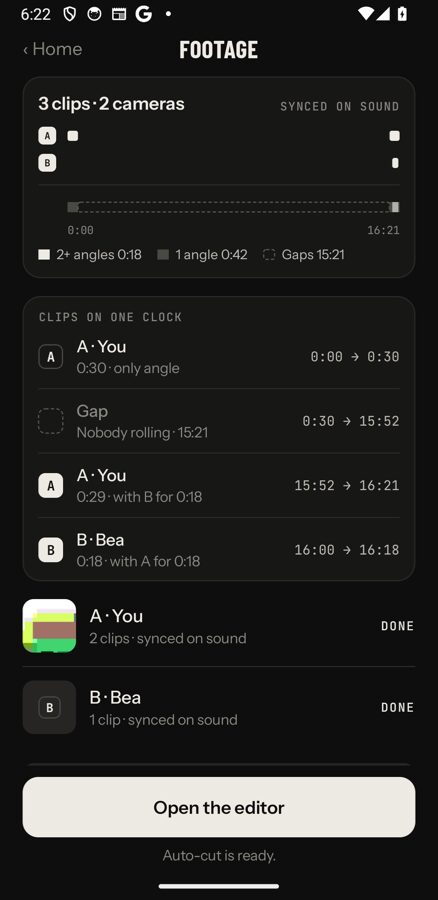
- The bars at the top show each camera's clips on one clock, one row per camera. White bars are synced. Grey bars are still arriving.
- The strip under them shows where you have 2 or more angles, where you have 1 angle, and gaps where nobody was filming.
- Clips on one clock lists every clip in time order, with who else was filming at the same time.
- The list of people shows what each camera has sent: uploading, waiting for Wi-Fi, or done.
Next to each person you may see how their clips were placed:
- Synced on sound: matched by its sound. This is the normal result.
- Placed by clock or placed by file time: the sound didn't match, so Angles used the time the clip was recorded.
- Couldn't sync: Angles couldn't place the clip.
- No recording time, left out: an added video with no usable sound match and no recording time.
If clips have arrived since the last cut, you see a Sync clips now button on the Footage screen, with the number of clips in it. Tap it to sync again straight away. When nothing new has arrived the button reads Re-cut, which syncs again at any time.
If something didn't line up, see A clip won't sync.
Edit the cut
When the auto-cut is ready, tap Open the editor. Anyone in the shoot can edit. Your edit stays on your own phone until you render it, so two people can make two different videos from the same shoot.
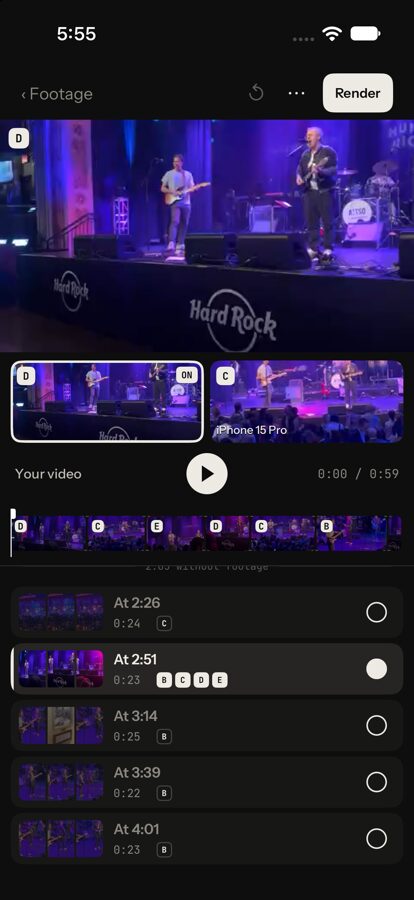
From top to bottom, the editor shows:
- Your video, as it will look when rendered.
- A tile for each camera that was filming at this point.
- The play button and the time.
- The strip of shots. Each block is one shot, with the letter of its camera. Stars are the moments people marked.
- The list of moments. Each row is a stretch of the event that someone filmed.
Switch cameras
Play the video. When you want a different angle, tap that camera's tile. The video cuts to it from that point. If more than three cameras were filming, tap All to see the rest.
Fix one shot
Tap a shot in the strip to select it. Then you can:
- Drag the handles on its edges to make it start or end earlier or later.
- Pick another camera under Swap this shot to.
- Tap Split to cut it in two at the playhead.
- Tap Slow-mo to play it at half speed. Tap Normal speed to undo that. A slow-mo shot can't be split. Set it back to normal speed first.
- Tap Remove to take it out of the video.
- Drag the picture to choose which part shows, when the clip is a different shape from the video. For example, a sideways clip in an upright video.
Pinch the strip to zoom in. Tap FIT to zoom back out.
Keep or leave out a moment
Tap a row in the list to watch just that moment. Then tap Keep or Leave out. The next moment plays, so you can go through the whole event quickly. Tap ‹ Whole video to go back to watching everything.
The circle at the end of each row shows whether the moment is in the video. Tap it to switch.
Undo, sound, shape and starting again
- The arrows at the top are undo and redo.
- Tap ⋯ to open the Video sheet.
- Sound: the video has one soundtrack from start to finish. Angles picks the cleanest microphone for you. You can choose another camera's sound.
- Shape: 9:16 (upright), 16:9 (wide) or 1:1 (square).
- Start again from a suggestion: Highlights makes a short video. All footage uses everything. Either one replaces your edit. Undo brings it back.
Render the video
Rendering turns your edit into a finished video file.
- In the editor, tap Render.
- Check the choices:
- Shape: 9:16, 16:9 or 1:1.
- Length: Whole cut, or Highlights. Highlights is built around the moments people marked. If nobody marked anything, it uses the loudest parts, up to a minute.
- Sound: which microphone to use.
- Title card + crew credits: adds the shoot's name at the start and the crew's names at the end.
- Tap Render.
The video is made on our servers at 1080p. You can lock your phone or leave the app. It will be there when you come back.
You can render as often as you like. A shoot keeps its 10 most recent renders, and the published one is always kept.
Save or send the file
When the render is done, anyone who made one can keep the file.
On iPhone, you go straight to the finished video. Tap Photos to save it, or Share to send it.
On Android, the Render screen shows Save to gallery and Share. Publish a link opens the screen with the link and the other sharing choices.
Tap Re-cut to go back to the editor and change something.
Publish a link
Only the person who started the shoot can publish. Publishing makes a web link to the video. Nothing gets a link until they choose to publish. Everyone else can still save the video file or share it.
- Render the video.
- Tap Publish a link.
- Tap Copy to copy the link, or Share to send it.
The crew isn't told automatically. Tap Send to crew (Crew on Android) to open your phone's share sheet with the link and a short message, then send it however your group talks.
A shoot has one published video at a time. If you publish a newer render, the link plays the new one.
Who can watch
Tap Who can watch to choose:
- Anyone with the link: the link plays in any web browser. No app is needed to watch. The video isn't listed anywhere and can't be found by searching.
- Only the crew: only people who are in the shoot can watch.
Crew-only links play in the Angles app, not in a browser. On iPhone, someone in the shoot taps the link and it plays in Angles. In a browser, the page says "This one is just for the crew".
On Android, watch links open in the browser, so a crew-only link won't play there. If your crew includes Android phones, choose Anyone with the link, or send them the file with Share.
Let viewers switch cameras
Viewers can switch angles is on by default. People who open the link can then pick a camera and watch from that angle. Turn it off to share only your cut.
Take a video down
The person who started the shoot opens the published video in Angles and taps Unpublish. The link stops working for everyone who has it. You can publish again later.
Unpublishing doesn't delete the video from the shoot. To remove everything, delete the shoot.
If you are in someone else's video and want it taken down, see Taking a video down.
Delete things
A clip
You can delete a clip you added. The person who started the shoot can delete anyone's clip.
- Open Footage.
- Find the clip under Clips on one clock.
- On iPhone, tap the clip. On Android, tap the ✕ at the end of its row.
- Tap Delete clip.
The clip is removed from the shoot for everyone, and the cut is made again without it. This can't be undone. Videos that were already rendered are not changed.
A whole shoot
Only the person who started the shoot can do this.
- On iPhone: open the shoot, tap ⋯ at the top, then Delete shoot for everyone…. You can also press and hold the shoot on the home screen.
- On Android: open the shoot and tap Delete shoot. You can also press and hold the shoot on the home screen.
This deletes every clip, every video and any published link, for everyone. It can't be undone.
Copies on your own phone
Deleting from a shoot doesn't touch your own gallery. Videos you saved to Photos or your gallery stay there until you delete them yourself. So do copies other people have saved.
What Angles deletes by itself
Clips are deleted from our servers 30 days after the last activity in a shoot. The shoot is then archived. Its finished videos and its published link keep working, but nobody can add clips, edit or render any more. Save anything you want to keep before then.
You can also ask us to delete your clips. See the privacy policy.